
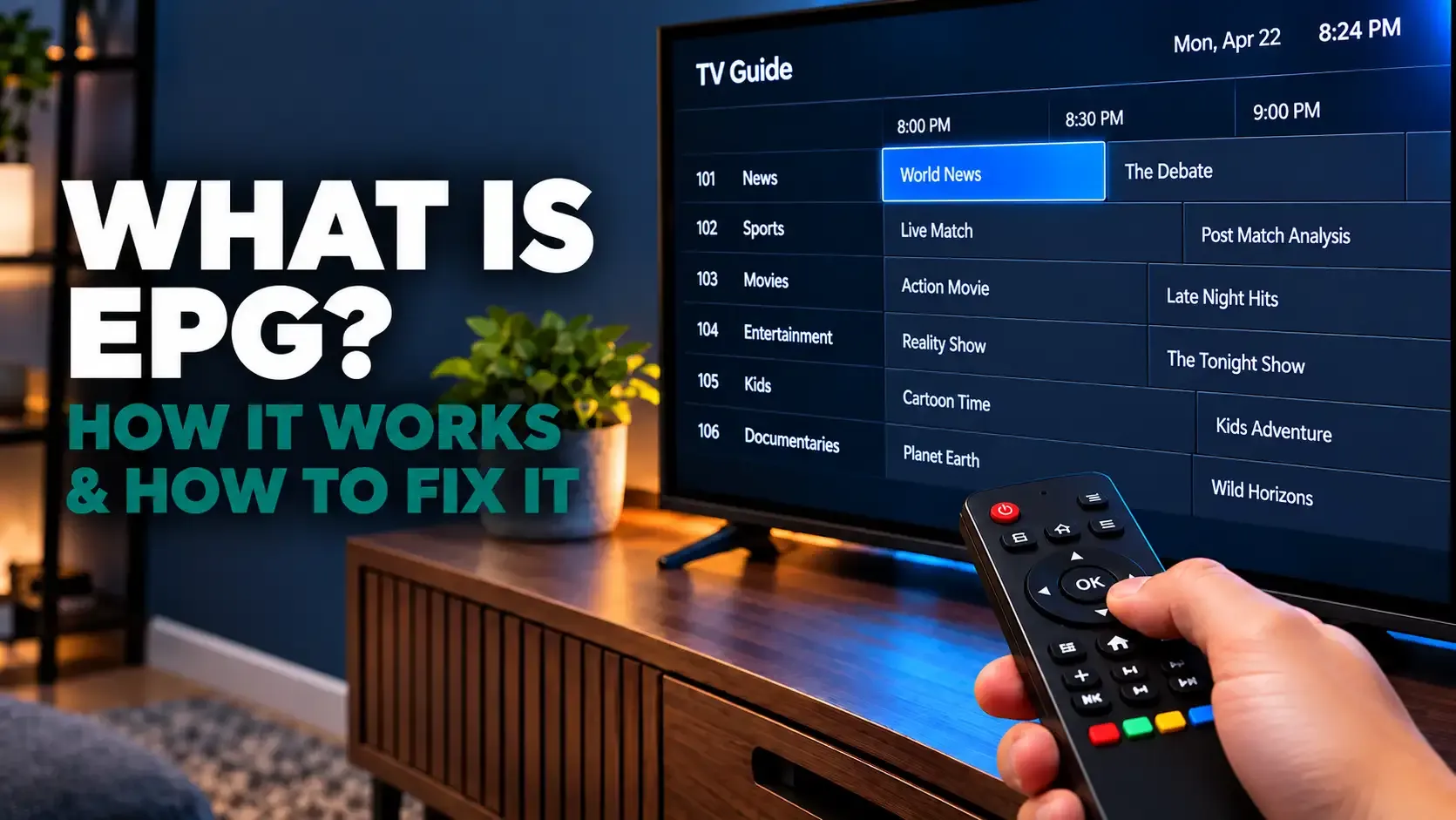
An EPG is the programme guide that maps schedule information to the channels in an IPTV playlist. It is separate from the live stream, so a channel can play normally while its listings are missing, delayed or attached to the wrong programme.
1. What Is EPG on IPTV? How the Guide Works
Before changing players, confirm that the playlist and guide belong to the same service and that the device clock and time zone are correct. Keep XMLTV or Xtream details private, refresh the guide once and then use the pattern of missing listings to decide whether the problem is local or provider-side.
This separation explains why an EPG fault is often mistaken for a playback fault. A working stream proves that the channel address is reachable, not that the provider has supplied matching programme data. If only a few channels are blank, the provider may not have a schedule for them or may have changed their identifiers. If the whole guide is missing, check the EPG source, account status, network connection and app cache first.
Guide depth varies. Some providers publish a few days of listings, while others publish a longer window. Catch-up, reminders and recording features also depend on the guide having accurate programme boundaries, so those features may fail when the EPG is incomplete even though live TV continues to play.
2. What You Need for a Working Guide
- An active playlist, supplied either as Xtream Codes details or as an M3U URL.
- An EPG source. Xtream Codes services often provide guide data through the same account, while a plain M3U playlist may need a separate XMLTV URL. The IPTV URL guide explains where these details normally appear.
- A player that supports the guide format you have been given. TiviMate, IPTV Smarters Pro, XCIPTV, Kodi’s PVR IPTV Simple Client and many box portals support XMLTV, although menu names and feature support differ by version.
- The correct date, time and time zone on the device. Automatic network time is preferable where the device offers it.
- Enough storage and memory for the guide file. Very large channel lists can make an older streaming stick or budget Android box feel sluggish during an update.
Before troubleshooting, confirm that the playlist and EPG belong to the same service. A third-party XMLTV file may use different channel identifiers and can leave more channels blank rather than fixing the problem. Never paste a private URL containing a username, password or token into a public testing service.
3. Xtream Codes vs M3U: Which One Loads the Guide for You
Xtream Codes normally uses a server address, username and password. Many compatible players request the provider’s guide automatically after login, but the provider and the app still control whether that feed is available. If the guide does not appear, look for a refresh command or ask the provider whether the account includes EPG data.
| Login type | Where the guide comes from | What you do |
|---|---|---|
| Xtream Codes (server, username, password) | Usually an XMLTV feed supplied by the provider and associated with the account | Sign in, then use the app’s guide refresh if the listings do not load automatically. |
| M3U with an EPG address in the header | The url-tvg address included in the playlist | Import the playlist; an app that reads the header can use that guide automatically. |
| Plain M3U with no EPG address | A separate XMLTV URL supplied by the provider | Add the address in the app’s EPG settings and run an update. |
| MAG, Formuler and other portal boxes | Portal-side data, when the portal supplies it | Reload the portal or contact the provider if the guide is not included. |
If both login methods are offered, Xtream Codes can be simpler because the provider can keep the playlist and guide associated with one account. It is not a guarantee of complete listings, though: guide coverage and refresh behaviour remain provider-dependent.
4. How to Add an EPG URL in Popular IPTV Apps
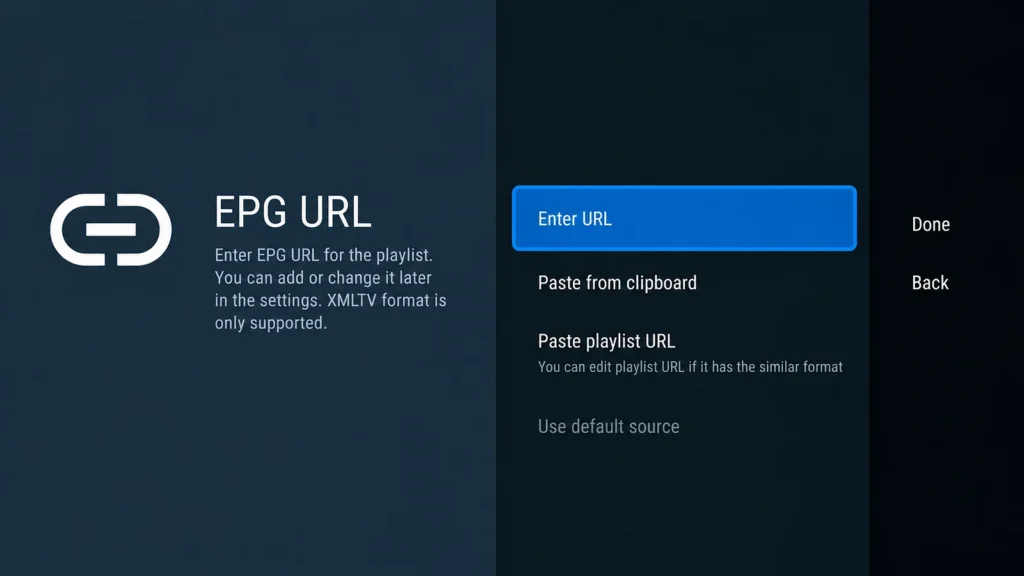
The usual process is to open the player’s settings, find EPG or TV Guide, add the XMLTV address and start an update. The names below reflect common versions; an update may move a menu or use slightly different wording.
TiviMate
On a compatible Android TV device, open Settings and then EPG. Choose Add EPG source, enter the XMLTV URL and run Update EPG. If the times are offset, use the time-shift setting after checking the device time zone. TiviMate is a player rather than a channel supplier, so you must provide your own playlist. The TiviMate setup guide covers the wider playlist setup.
IPTV Smarters Pro
With an Xtream login, the guide may be supplied as part of the account. If it is blank, look for Refresh EPG, Install EPG or a similar command in Live TV or the home screen. Some releases also expose an EPG time-shift option in Settings. Because labels vary between platforms, use the closest equivalent shown by your version. See the IPTV Smarters Pro login guide for the initial sign-in sequence.
XCIPTV
XCIPTV commonly receives the guide with an Xtream-style login, but the provider must supply matching data. After signing in, allow the first guide download to finish, then use the app’s refresh option if listings are incomplete. If the whole guide is empty, check the account and ask whether EPG access is enabled. The IPTV setup guide provides device-independent playlist checks.
Kodi (PVR IPTV Simple Client)
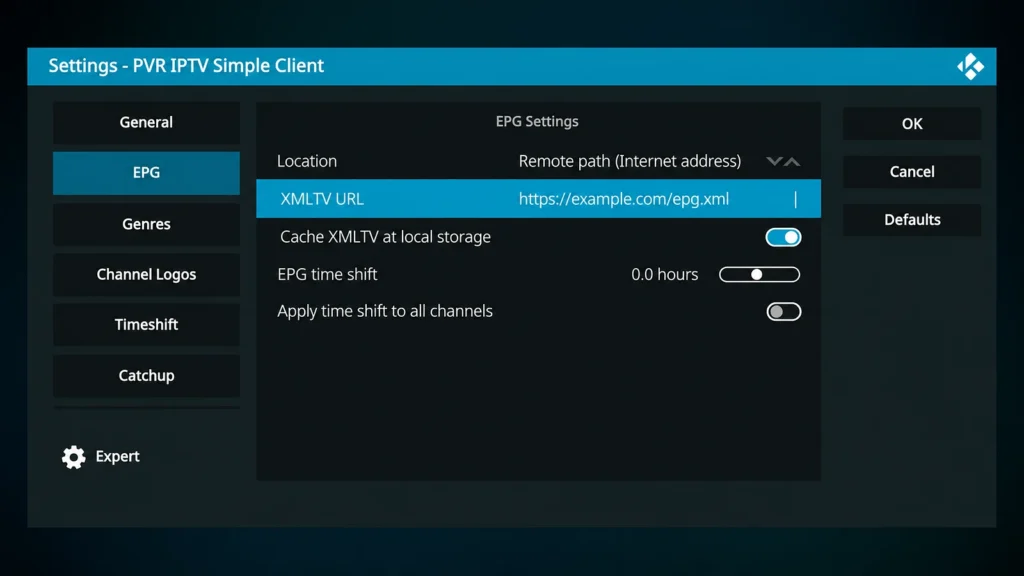
Install Kodi’s PVR IPTV Simple Client from the official Kodi repository. In the add-on settings, set the EPG location to Remote path and enter the XMLTV address supplied with your playlist. Save the setting and allow Kodi to reload the guide; the time-shift option is available in the same area when the add-on version exposes it. Kodi’s official add-on documentation explains the current fields, and our Kodi IPTV guide covers the surrounding playlist steps.
GSE Smart IPTV (iPhone, iPad, Apple TV)
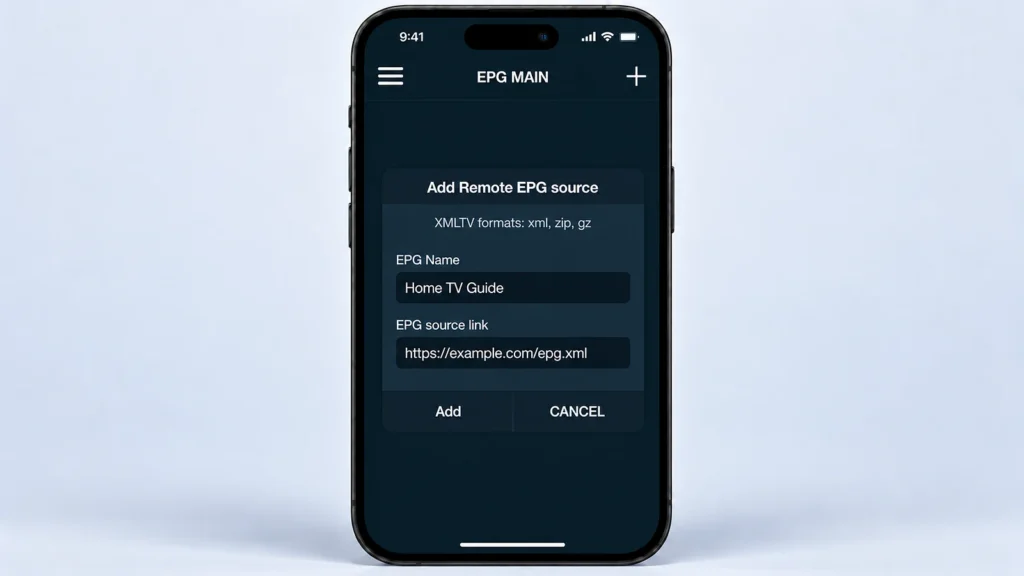
Open the EPG or programme-guide area, choose Add Remote EPG source, enter a label and paste the XMLTV URL. Save the source and refresh the guide. The exact menu can vary between iOS and tvOS releases, so follow the labels shown on your device. The GSE Smart IPTV guide covers playlist setup on these platforms.
MyIPTV Player (Windows)
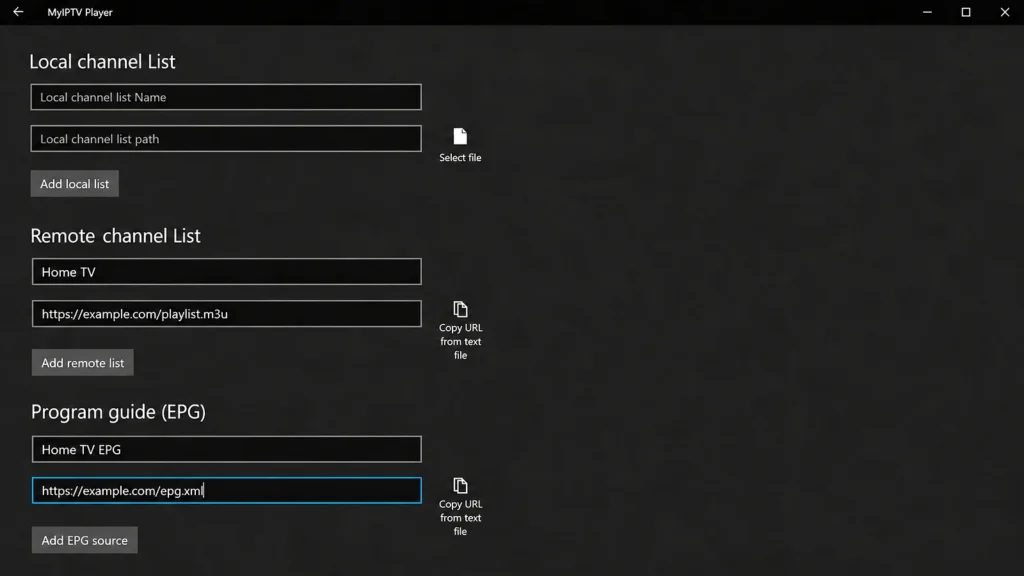
In Settings, open Add new playlist and EPG source. Under Program guide (EPG), enter a name, paste the XMLTV address and choose Add EPG source. Refresh the guide from Settings after saving. Keep the URL private if it contains account details. The IPTV setup guide provides general playlist checks for Windows users.
MAG and Formuler boxes
Portal boxes may receive guide data from the portal without a separate XMLTV field, but this depends on the portal and provider. On a MAG device, reload or restart the portal when the provider advises it. Formuler menus differ between MYTVOnline versions, so use the portal or guide refresh shown on your model. If the portal does not include listings, contact the provider rather than assuming the box is faulty. Start with the IPTV setup guide for the account and network checks.
Paste an EPG address exactly as supplied, without adding spaces. A URL ending in .xml.gz is a compressed XMLTV file, but support for compressed feeds varies by app and version; check the player’s documentation before assuming it will open. Never publish a credential-bearing URL in a screenshot or send it to an untrusted online tester.
5. Why Some Channels Have a Guide and Others Don’t
A blank row for one channel usually means that its playlist identifier does not match an entry in the XMLTV data. The stream can remain available because playback and schedule data are separate. It may also mean that the provider has no listings for that channel or has changed the identifier recently.
Common causes include:
- The channel is absent from the guide file. Regional, event and 24-hour channels are often the first to have limited coverage.
- The provider changed the channel ID and the guide has not caught up yet.
- The playlist and XMLTV file came from different services and use different identifiers.
Some players let you assign a different guide entry to one channel manually. That can help with a small number of mismatches, but it is not practical for a large list. If entire categories are blank, report the channel IDs to the provider so the mapping can be corrected at source.
6. How Often the Guide Should Update
A daily refresh is a sensible starting point, but the best interval depends on how frequently the provider changes its listings and how much storage the device has. Do not treat 24 hours as a universal requirement. Use the app’s automatic schedule when available and run a manual refresh after a playlist or time-zone change.
- Automatic updates: set the interval in the app’s EPG settings if that option exists. Some players refresh on launch instead.
- Manual refresh: use it after changing a playlist, changing the device clock or noticing stale programme information.
- Use one matching source per playlist where possible. Several competing feeds can slow the update and create conflicting entries.
- Watch available storage on small streaming devices. Clear old guide data only when the app or device provides a safe cache option.
7. Fixing an Empty or Missing EPG Guide
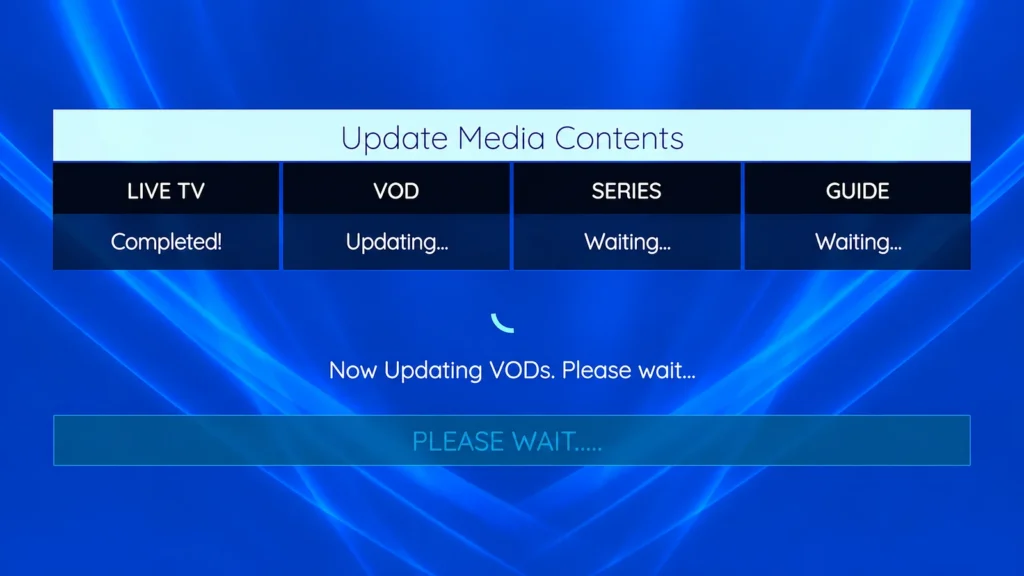
Start with a forced guide update and give it time to finish. A large XMLTV file can arrive after the channel list, so checking too soon can make a healthy feed look empty. If the guide still does not appear, work through these checks in order:
- Confirm that an EPG source is actually saved. M3U users often have a working playlist but no XMLTV address in the app.
- Test the address privately in a browser. A valid feed may download a file or show XML text. Do not share the address: usernames, passwords and tokens can be embedded in it and may be stored in browser history, screenshots, proxy logs or sync services.
- Check that the account is active and that the provider has not changed the server or guide URL.
- Clear only the app’s EPG data or cache when that control is available, then load the guide again.
- Restart the player and then the device if the download appears stuck.
- Check whether the provider reports an outage or maintenance affecting guide data.
- Re-enter the account details only after checking them carefully; a changed server address can invalidate an otherwise correct guide URL.
| Symptom | Most likely cause | Fix |
|---|---|---|
| The whole guide is empty | No source was saved, or the download has not completed | Check the address, start an update and wait for it to finish |
| The guide worked previously and then disappeared | Expired access, stale data or a provider-side outage | Check the account, refresh the data and ask the provider |
| Only some channels are blank | Channel IDs do not match the XMLTV entries | Try a verified manual match or report the IDs to the provider |
| Listings are shifted by hours | Device time zone or an app time-shift value | Correct the device clock, refresh, then adjust the app only if needed |
| The guide loads but the menus freeze | A large guide file is stressing the device | Use one source, clear safe cache data and consider a stronger device |
| Catch-up or recording is missing | The feature depends on valid EPG boundaries | Repair the guide first, then check the feature again |
8. Fixing Wrong Times in the Guide
When every listing is shifted by a whole number of hours, check the device clock before changing the app. A correct time zone and automatic date setting solve many cases. Refresh the guide after making the correction so the player recalculates the programme times.
- Set the device time zone and date/time to automatic where possible.
- Force a new EPG update after changing the clock.
- Use the player’s EPG time-shift control only if the listings are still offset after the device setting is correct.
UK viewers should also check these common situations:
- Confirm that the device is set to the correct UK region rather than retaining a previous travel or VPN location.
- During the clock changes in March and October, refresh the EPG after automatic time has updated.
- If the provider publishes data in UTC, the player should convert it; a persistent offset may indicate an app time-shift setting.
- Half-hour or unusual offsets are better reported to the provider than guessed with repeated manual adjustments.
9. Catch-Up, Recording and Parental Controls All Depend on EPG
The guide is more than a list of programme names. Players use its start and end times to build catch-up menus, schedule recordings and display reminders. The exact features vary by app and provider, but incomplete guide data can make a supported feature appear to be broken.
- Catch-up uses the guide boundaries to locate a previous programme. A channel without usable listings may not show a catch-up entry.
- Recordings and reminders are scheduled from the programme entry, so check the guide before blaming the recorder.
- Some players read ratings from the EPG for parental-control labels; others use separate app settings.
- Search normally covers only programmes that the current guide feed contains.
If listings are correct but the stream stutters, the EPG is not the cause. Check the connection and the provider’s service separately, and use the IPTV FAQ for general troubleshooting questions.
10. EPG Quality, Third-Party Guides and Legal Basics
EPG quality depends on the source, the provider’s mapping and the app’s support for the format. Third-party XMLTV tools and public guide lists exist, but they can change or disappear and may not use the same identifiers as your playlist. They also require care when a source contains account details. For most viewers, a provider-supplied guide that matches the playlist is easier to maintain.
IPTV software and guide files are not the same thing as broadcasting rights. Use a service only when you have permission to view the programmes in your jurisdiction, and follow the provider’s terms. A complete EPG does not prove that a service is licensed. When comparing a service, test the channels you actually watch, confirm the times match your local clock and avoid sharing private playlist or EPG credentials.
Frequently Asked Questions
What is EPG on IPTV?
It is the electronic programme guide shown inside an IPTV player. The app combines your channel list with schedule data, commonly delivered as XMLTV.
Why is my IPTV EPG not showing?
The usual causes are a missing or expired EPG address, a guide that has not finished downloading, stale app data or a provider-side outage. Check the source privately, refresh it and confirm the account is active.
Does an M3U playlist include the EPG?
Sometimes. An M3U header may contain a url-tvg address, but a plain playlist may need a separate XMLTV URL from the provider.
Do I need an EPG URL with Xtream Codes?
Often not: compatible players may request the feed with the Xtream login. It is not universal, so check the app and provider if the guide remains empty.
Why are the times in my IPTV guide wrong?
The device time zone is the first thing to check. Set automatic date and time, refresh the guide and use an app time-shift only when the offset remains.
What format is IPTV EPG?
XMLTV is the common XML-based schedule format. Feeds may use .xml or compressed .xml.gz files, but support for the compressed form depends on the player. For background on M3U8 playlist syntax, see Apple’s official HLS playlist examples.
How often should I update the EPG?
Use the provider or app’s automatic schedule when available. A daily refresh is a reasonable starting point, with a manual update after playlist changes, clock changes or stale listings.
Why do only some channels show guide information?
Those channels may have no schedule entry or may use an ID that does not match the XMLTV file. A manual match can help for a few channels; a larger mismatch needs the provider to correct its mapping.
Conclusion
An EPG works when the playlist and schedule file describe the same channels and the player can read both. Check the source, identifiers, device clock and app cache in that order. Xtream Codes may simplify the setup, while M3U users often need to add an XMLTV address manually.
If only certain channels lack listings, the provider’s mapping is the likely cause. Test the guide on the channels you watch, keep credential-bearing URLs private and ask the provider for a corrected feed when the problem is outside the app.