
When IPTV appears to be down, first establish whether the failure affects the provider, the home network or one device. Test the same channel on a second compatible device and, if safe, compare the connection with mobile data before changing account details or resetting the television.
Write down what works and what fails, keep M3U and Xtream credentials private and change one setting at a time. A service outage, expired account, weak Wi-Fi and a damaged app cache can look similar on screen but require different fixes.
1. Is IPTV Down Today for Everyone or Just You?
A second connection and a second device provide the quickest first diagnosis. Do these checks in order and write down what changes, rather than making several settings changes at once.
- Try another device or player. Open the same channel on another television, box or computer, or use a different player on the same account. Failure everywhere points towards the service, account or connection; failure on one device points towards that device or app.
- Test a mobile hotspot. Connect the streaming device to a phone’s mobile data for a short test. If playback works there but not on home broadband, investigate the home network or ISP before blaming the provider.
- Check another streaming service. If other video services also buffer, the network or device is more likely to be involved. If they play normally, compare the IPTV app and account again.
- Check the provider’s support channel. Look for a status message, maintenance notice or reply from support. There is no universal status page covering every IPTV provider.
- Compare the time of day. A repeatable evening-only pattern can indicate congestion, but it is evidence to test rather than proof of throttling or a provider outage.
If the service works on mobile data or another device, continue with sections 5 to 9. If every test fails, skip to section 10 and contact the provider before resetting equipment.
2. Use the Symptoms to Narrow the Cause
The visible symptom does not identify the cause on its own, but it helps you choose the least disruptive next check. Use this table as a guide, then confirm the result with a second test.
| What you see | Possible cause | Next place to check |
|---|---|---|
| Black screen on every channel | Provider outage, expired access or rejected login | Sections 9 and 10 |
| Spinning wheel, then playback | Unsteady Wi-Fi, low available bandwidth or a busy network | Sections 5 and 7 |
| Buffering mainly in the evening | Congestion at home, on the ISP network or at the provider | Section 7 |
| Works on mobile data but not home broadband | Home-network routing, congestion or possible traffic handling | Section 7 |
| Channels take a long time to open | Slow name resolution, playlist delay or an over-large buffer | Sections 7 and 8 |
| Stutter that appeared gradually | App cache, device storage or rising network load | Section 6 |
| One channel fails while others work | That channel’s source or provider-side feed | Section 10 |
| Picture without sound, or sound without picture | Player or decoder compatibility | Section 7 |
| Guide shows no information | Missing, stale or incorrectly timed EPG data | Section 9 |
| Freezing began after a setting change | Buffer or decoder setting is unsuitable | Section 8 |
| Channels disappeared overnight | Changed playlist address, expired access or provider shutdown | Sections 3 and 9 |
3. Why IPTV Can Freeze at Busy Times
A stream that is smooth in the afternoon but unreliable in the evening is often competing for capacity. The limiting point may be your Wi-Fi, another household device, the wider access network or the provider’s own servers. A high headline speed does not guarantee a steady connection to the television.
Three common situations can look identical from the sofa:
- Local or neighbourhood congestion: shared capacity becomes busy at peak times, especially on some cable or fixed-wireless networks.
- Household traffic: downloads, cloud backups, calls and other streams leave less consistent capacity for the television.
- Provider-side load: the service’s servers or a particular channel source may be busy for everyone using it.
Use these comparisons to separate the possibilities:
- Play the same channel for five minutes during a quiet period and again at the time when it normally freezes. A repeatable difference is useful evidence, not a diagnosis by itself.
- Run a speed and stability test on the streaming device at both times. Record latency, packet loss and consistency as well as the headline download number.
- Compare Ethernet with Wi-Fi if the device has a network port or a suitable adapter. Improvement on a cable points towards local wireless conditions.
- Pause downloads, backups and other streams for ten minutes. If playback settles, household traffic is part of the problem.
- Try the same test on a phone hotspot for a short period. A different result identifies a network path difference, but it does not prove throttling or blocking.
- Check another video service at the same time. If everything struggles, investigate the connection before the IPTV account.
- Ask the provider whether a channel or server is under maintenance. If every local test is clean and only its streams fail, request a current status and playlist rather than repeatedly changing your device.
If evening problems continue on a wired connection while other services remain stable, compare another provider only after checking the account terms and licensing. Do not assume a VPN, a DNS change or a faster package will repair an overloaded source.
4. Why IPTV Goes Down: Provider-Side Causes
Some failures sit outside the home. A provider can have an overloaded server, a broken channel source, planned maintenance, an expired account system or a changed playlist address. No television setting can repair those conditions, so confirm them before factory-resetting a device.
Streaming rights and access rules also differ by service and jurisdiction. Use a provider that can explain what it is licensed to carry, how it handles support and where to find its terms. Avoid sweeping claims about blocklists or legality: a different-network result may show a routing difference, but it does not establish the reason or make an unlicensed service lawful.
If a provider has moved servers, ask for a current playlist or Xtream details through its normal support channel. Check that the account is active and that the URL has not expired before removing working data from the app.
5. First Checks: Restart and Wired Connection
Start with reversible checks. A controlled restart can clear a temporary connection state, while Ethernet or a properly installed adapter can show whether Wi-Fi is introducing packet loss. These steps are tests, not guaranteed cures.
To restart the network equipment safely:
- Close the IPTV app and unplug the router, any separate modem and the streaming device.
- Leave the equipment disconnected long enough for its lights and active sessions to stop. The exact waiting time is not a universal cure; follow the device maker’s guidance.
- Power the modem and router first, then wait for a stable internet connection.
- Power the streaming device, reopen the app and test the same channel again.
If you need a full reset later, follow the device-specific sequence in our guide to resetting an IPTV box and treat a factory reset as a last resort. For the connection test, run an Ethernet cable to the TV, box or console when the hardware supports it. A Fire TV Stick needs a compatible Ethernet adapter; check the exact model before buying one.
- After connecting a cable, disable Wi-Fi on the device if its settings allow it, so it does not silently switch back.
- If Ethernet is not practical, use the cleaner available Wi-Fi band, place the router in the open and avoid hiding it behind the television.
- A mesh, powerline or MoCA system can help in some homes, but performance depends on wiring, distance and interference.
- Pause large downloads and backups while testing, then repeat the test with normal household traffic.
- Compare the result with the practical measurements in our IPTV internet-speed guide; bitrate and stability matter as much as the advertised package.
6. Clear the App Cache and Free Up the Device
Temporary app data can become stale, but clearing it may remove local settings. Record the provider details privately before using Clear Data, and remember that menu labels vary by app version and operating system.
Fire Stick
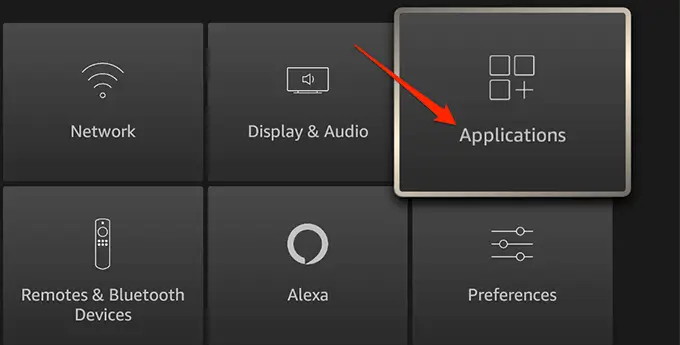
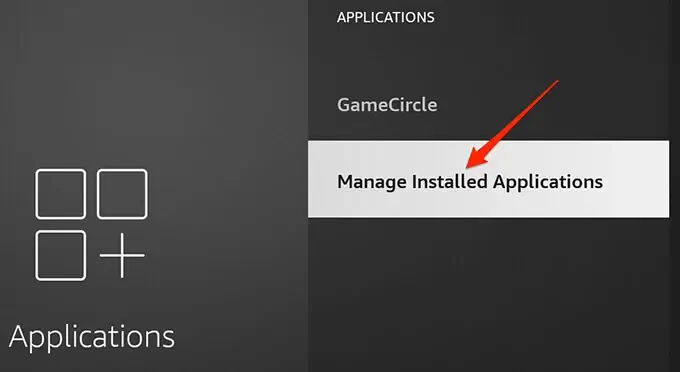
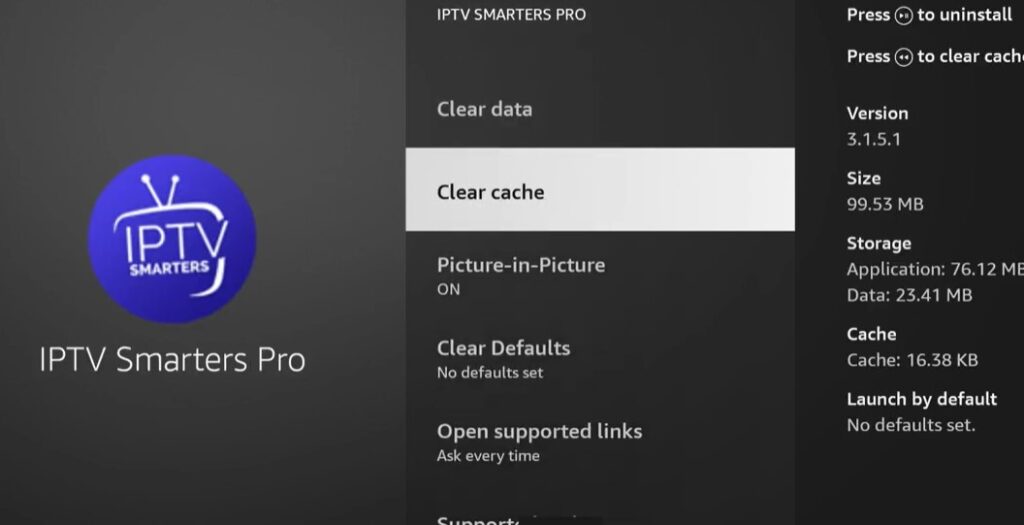
Amazon Fire TV documentation uses Settings > Applications > Manage Installed Applications. Select the IPTV app, try Clear Cache first, then Force Stop and reopen it. Clear Data signs the app out and removes its saved configuration, so use it only when you are ready to enter the account details again.
The exact wording can differ between Fire TV generations and Fire OS versions. Follow the menu shown on your screen rather than assuming that every model exposes the same cache controls.
Open Settings > Applications.
Choose Manage Installed Applications.
Select the installed IPTV app, such as TiviMate or IPTV Smarters Pro.
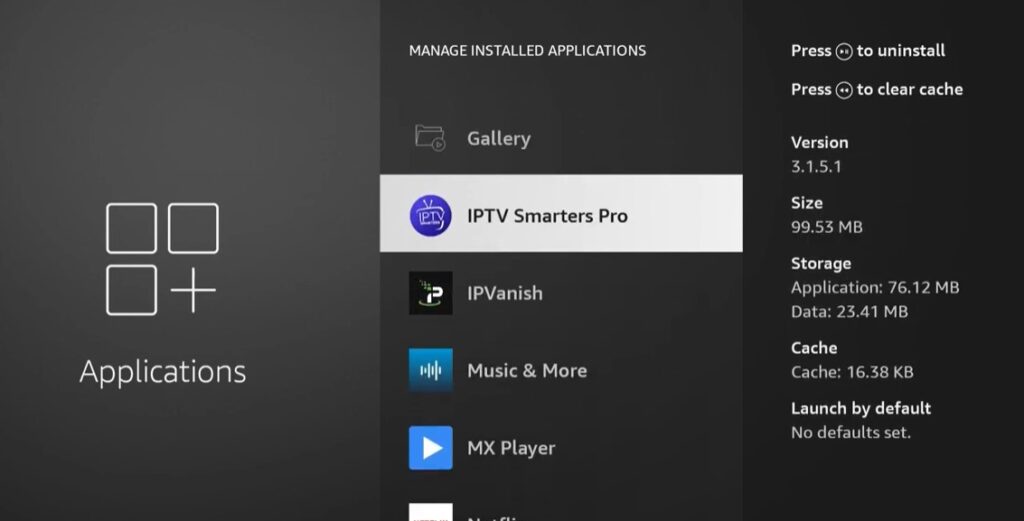
Choose Clear Cache first. Use Clear Data only if the cache test fails and you have kept the login details private.
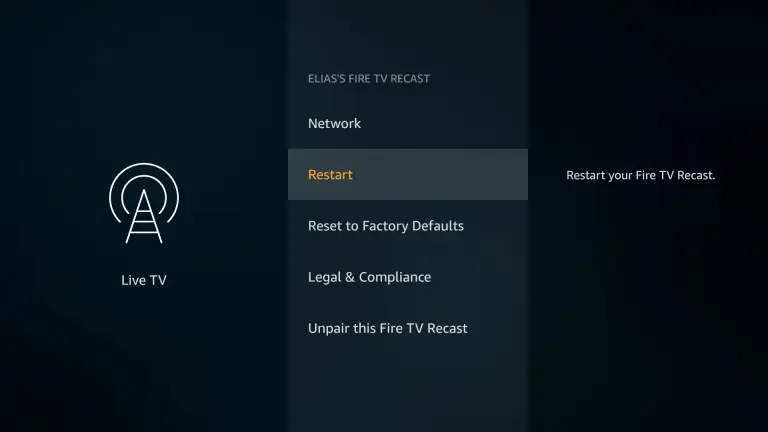
Restart the Fire TV device using its own restart command or by briefly removing power when the manufacturer advises it.
Relaunch the app and test one known channel before changing another setting. If the problem remains, uninstall and reinstall only from a source you trust and check the app’s own support guidance.
Android TV or Google TV
On many Android TV and Google TV versions the route is Settings > Apps > See all apps > your IPTV app > Storage and cache. Firmware and manufacturer menus differ, so use the labels on the device. Try Clear cache before Clear storage, then reopen the app.
Samsung and LG smart TVs
Samsung Tizen and LG webOS do not use the Android TV cache path. Depending on the model, restart the television, update the app or remove and reinstall it from the manufacturer’s store. Do not apply Android instructions to these platforms.
iPhone and iPad
iOS and iPadOS apps do not all expose a clear-cache button. If the player supports no reset option, remove it, restart the device, reinstall it from the App Store and sign in again without sharing the credentials.
Windows or Mac
Use the player’s own cache or reset control when it has one. Otherwise close it fully, check for an update from the publisher and reinstall only from an official or trusted source.
A device with very little free storage or excess heat can also become unreliable. Close unused apps, leave airflow around a streaming stick and pause downloads while testing. Clearing a cache is a diagnostic step, not evidence that the provider is healthy.
7. Network and Player Fixes: DNS, Throttling, Quality and Decoders
Once the basic connection and app checks are complete, test one variable at a time. The following options can help in particular cases, but none is a universal IPTV fix.
Change your DNS only when name resolution is the problem
A DNS resolver translates a hostname into an address; it does not repair a failed stream, an expired account or an overloaded server. If other tests suggest slow name resolution, examples include Cloudflare’s 1.1.1.1 and 1.0.0.1 and Google’s 8.8.8.8 and 8.8.4.4. Treat these as optional alternatives, record the previous settings and change them only on a device or router you understand.
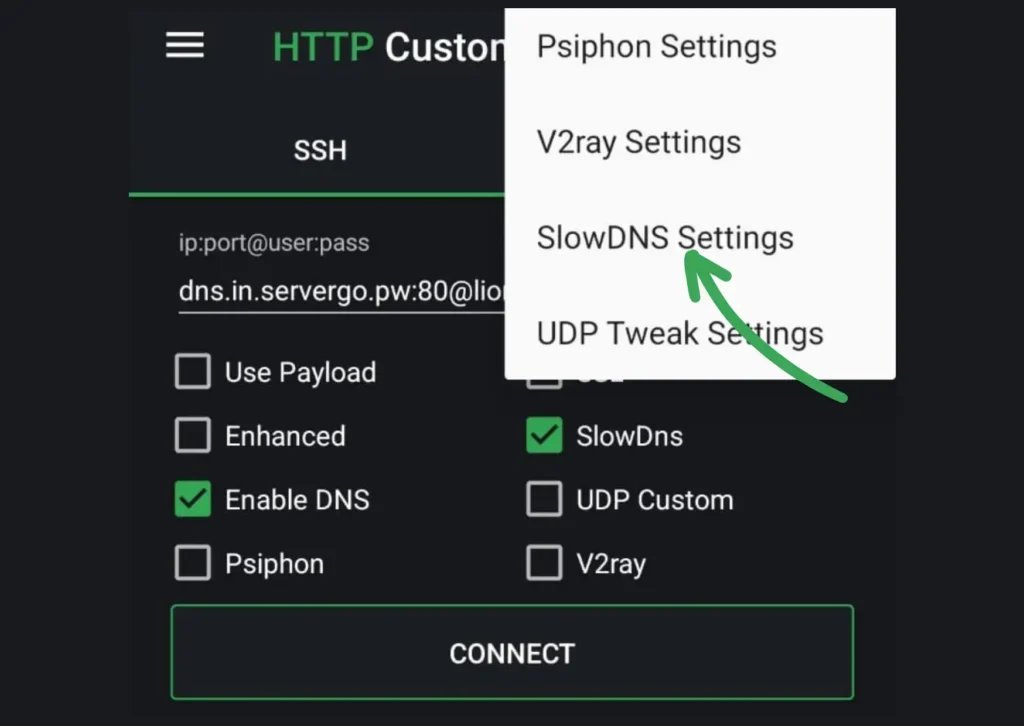
The SlowDNS/tunnel screen above is illustrative. It is not a recommendation to install a tunnel, bypass a block or change DNS system-wide, and it cannot establish why a stream is failing.
Test possible ISP traffic handling without treating it as proof
If playback is smooth on mobile data but unreliable on home broadband at the same time, compare the two paths again after checking Wi-Fi and household traffic. A reputable VPN may provide another test route, but one improvement with a VPN does not prove throttling, blocking or legality. If you try one, use a provider you trust, read its terms, keep the kill switch enabled where available and avoid entering IPTV credentials into the VPN app. A VPN can also reduce performance or make a provider reject a connection.
Lower stream quality when bitrate is the limit
A lower resolution can reduce the required bitrate, but the saving depends on the codec, frame rate and provider. Temporarily choose HD instead of 4K or Full HD and compare the same channel. If it becomes stable, the connection may be struggling with the stream’s actual bitrate; a 25 Mbps or 50 Mbps rule is not universal.
Switch the player or decoder for compatibility symptoms
Picture without sound, sound without picture or a crash on one format can indicate a player or decoder mismatch. If the app offers hardware and software decoding, change one option, test the same channel and note the result. The labels and available engines vary by app, device and firmware; a different player may help, but it is not guaranteed to support every stream.
8. Adjust the Buffer Setting (Advanced)
Change buffering only after checking the network, cache, playlist and decoder. The buffer is the amount of content held ahead of playback. Its name, scale and effect differ between players, so record the original value before experimenting.
Use one small adjustment at a time:
- A larger buffer can tolerate a brief dip in throughput, but it may delay the start of a channel and use more device storage or memory.
- A smaller buffer may start more quickly on a stable connection, but it leaves less margin for packet loss and can expose stutter on live content.
Test each value on the same channel by opening it from a fresh start, switching away and back, and watching for several minutes. If freezes or audio cuts begin immediately after lowering the value, restore the previous setting. Buffering will not repair an expired playlist, speed up a separate EPG download or cool an overheating device.
9. App and Playlist Fixes: Expired Links, Xtream Codes and the Guide
A healthy service can appear broken when an app has stale data, a playlist has expired or the electronic programme guide is using an old URL. Work carefully and keep every credential private.
- Start with the app. Update it from its official store, restart it and remove/re-add a playlist only when you have the current details saved securely.
- Request a current playlist address. If channels vanished overnight, ask the provider whether its server or URL changed. Do not test a real URL in an untrusted online checker.
- Compare M3U and Xtream Codes. Xtream login fields normally consist of a server address, username and password, while an M3U is a playlist URL. Neither format guarantees uptime, and both can expose credentials if shared.
- Refresh the EPG. A guide showing no information can mean a missing XMLTV address, stale data or a device time-zone mismatch. Our IPTV EPG guide explains the fields without asking you to publish a private URL.
- Check the account dates and connection limit. An expired account can leave cached channel names visible even though playback fails. Ask the provider for account status rather than posting login details.
- Keep a private note of the current setup. Store the provider name, renewal date and device configuration securely, but never place passwords or tokens in a public document.
For broader setup help, use the local IPTV setup guide and the IPTV FAQ. They are safer starting points than copying an old playlist from a forum.
10. When the Provider Is the Problem: What to Do Next
If the service fails on a wired connection, on more than one device and across more than one network, contact the provider. Ask whether there is an outage, whether a current server or playlist is available and whether the account is active. Give support the app name and non-sensitive error description, never the full M3U or Xtream password.
Look for transparent terms, lawful content licensing, a clear renewal process and a support route that does not request passwords in public. A free trial can help you test stability before committing, but it is not proof of future uptime. You can review the local IPTV free-trial information and pricing page without assuming that every service has the same rights or infrastructure.
Frequently Asked Questions
How do I know if IPTV is down for everyone or just me?
Try the same channel on a second device and on a phone hotspot. If it works on the other network, investigate the home connection; if it fails everywhere, ask the provider about an outage or account problem.
Why does my IPTV only freeze at night and work fine during the day?
Peak-time congestion can affect your home, your ISP path or the provider. Compare the same channel at quiet and busy times, pause other traffic and test Ethernet before drawing a conclusion.
Is 25 Mbps enough for IPTV at night?
There is no universal number. Required capacity depends on the stream bitrate, resolution, codec, other devices and the connection’s stability. Check the actual device test rather than relying on a single speed figure.
Why did my IPTV suddenly stop working?
Possible causes include a provider outage, expired access, a changed playlist address, a broken app install or a network problem. Test another device and network first, then ask the provider to confirm the account and URL.
Why is my IPTV buffering even with fast internet?
A high advertised speed does not guarantee a steady Wi-Fi path to the television. Packet loss, household traffic, app data, stream bitrate and provider capacity can all matter. Compare Ethernet, another network and another service.
Will an Ethernet cable really fix IPTV freezing?
It can remove wireless interference and signal variation, so it is a useful diagnostic and sometimes a lasting fix. It cannot repair an expired account, a failed channel source or an overloaded provider.
Does a VPN fix evening freezing?
Not generally. A VPN creates a different network route, so a change may help identify routing or traffic-handling differences, but it does not prove throttling and can reduce speed. Test it only if you understand the provider’s terms.
How often should I clear my IPTV app cache?
Only when the app shows symptoms that make a cache problem plausible, or when the device maker recommends it. Clearing a cache on a schedule is not necessary for every app, and Clear Data has a different effect.
Is it worth lowering the buffer limit in IPTV Smarters Pro?
Only if the connection is stable and the current buffer causes an obvious start-up delay. Change one step, test the same channel and restore the previous value if freezes or audio cuts appear.
Why do I get video but no sound on IPTV?
The player may not support the stream’s audio or video format. Try the app’s available hardware/software decoder options one at a time, then compare another player or channel. This is device and stream dependent.
Should I upgrade my internet plan to stop IPTV freezing?
Not as the first response. Check Wi-Fi, Ethernet, household traffic, stream quality and the provider path before paying for more capacity. A faster package cannot fix packet loss or an unavailable server.
What’s the fastest fix when IPTV goes down?
Test a second device and network, restart the app and router using the manufacturer’s guidance, clear only the app cache and ask the provider for current status. That sequence distinguishes a local fault from a service problem without exposing credentials.
Conclusion
When IPTV stops working, diagnose before resetting. A second device, a short mobile-data comparison and a quiet-versus-busy time check show whether the issue follows the account, the network or one piece of hardware. Then work from the least disruptive steps: check the provider, test Ethernet, pause other traffic, clear the app cache, review the playlist and EPG, and only then try DNS, decoder, quality or buffer changes.
Keep M3U and Xtream credentials private, use only services whose licensing and terms you understand, and treat every troubleshooting result as evidence rather than a guarantee. If the same failure follows the service across clean tests, contact the provider instead of repeatedly changing the television.